Train paths
The catalogue of a period's train paths. Search, read the route and usage, create and duplicate, instantiate, link offers.
The Train paths screen manages the catalogue of train paths of a timetable period: what the infrastructure manager has granted. Here you create, edit, duplicate and delete train paths, read their route point by point and their usage rate, generate their dated runs, and link them to the relations of the transport plans.
Required right Read train paths
The screen opens from the Train paths card of the dashboard, from the week view by clicking a covered cell, from the reference transport plan through the “Open train path” link of a leg, or directly at …/rail/train-paths. The read right on train paths is enough to read everything; each action needs its own right, listed below.
Finding your way
- The period
The selector at the top left lists the periods by code. On opening, the screen lands on the period that contains today’s date, otherwise on the one with the latest end date. Search, facets and groups are restricted to the chosen period; changing it closes the detail panel. Without any period: “There is no period. Please create a period first to be able to create a train path.”

- Search
Full text, with a history and favourites; several terms are separated by commas. A train path number is the most common term: the other screens arrive here with that number already typed.
- Facets
The left panel filters by Usage status (Used, Over-used, Partial, Unused), Application alignment (Exact, Inconsistent, Under-covered, Over-covered), Supplier (the railway undertakings present, plus “No supplier”), Origin and Destination. Each value carries the number of matching train paths, recomputed from the search and the other facets.
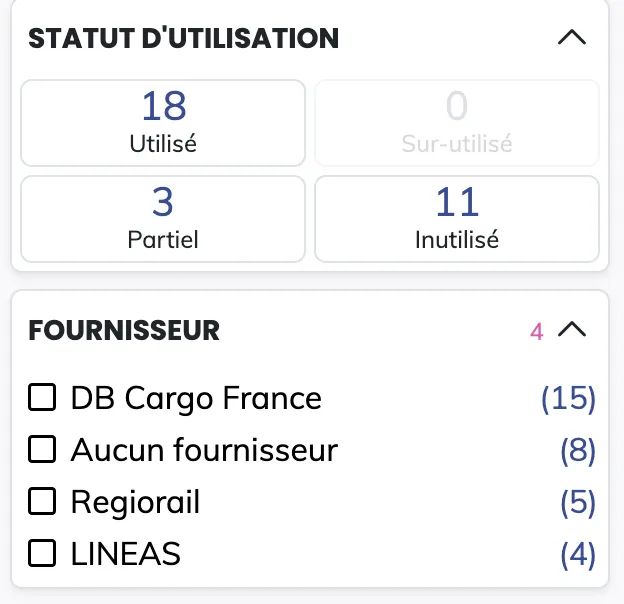
- Sorting and groups
Sorting is by creation date (default, newest first) or by train path number, ascending or descending. On a wide screen, the list can be grouped by Train path number (every variant of a number together) or by Relation name (the linked relations). Groups can be nested; each group is a folder band that a click opens or closes, and items without a value go to the end of the list.

The list loads in batches, with “Show more…” at the bottom of the list or of a group. Period, search, facets, sort, groups and selected train path are carried by the page address: the link can be shared, and the state survives a refresh.
Reading a card
A click on a card selects it and opens its detail on the right; a second click deselects it.
| Area | What it says |
|---|---|
| Status badge | straddling the edge: Active (green), Draft (orange), Archived (grey) |
| Identity | the train path number, the v.N variant and the period code; on the right, the supplier’s logo and name, or the red mention “No supplier” |
| Actions | the pencil icon to edit, and a menu: Duplicate train path…, Instantiate train path…, Create an offer from this train path…, Delete train path… (in red). Each only appears with its right |
| Journey | HH:MM Origin, an arrow carrying the duration (7h45), HH:MM Destination, with the orange superscript +N if the arrival falls on a later day |
| Running pattern | the 7 cells M T W T F S S, running days in blue |
| Validity | dd/MM → dd/MM/yy |
| Usage | “Computing…” while recalculating; otherwise the rate in %, a bar (green from 80 %, orange from 50 %, red below) and the number of linked relations; “Unused” without data |
| Chips | ARR: the number of points of the route; HLR: the first customer latest handover time at the origin; MAD: the first customer availability time at the destination. A tooltip on each |
The detail panel
Selecting a train path opens the panel on the right. Empty, it shows “No train path selected”. The header repeats the number, the variant, the status badge and the period code; then “Origin and departure time → Destination and arrival time · duration · d+N”; then the train path’s comment if any. Two tabs: Route, with the number of points, and Usage, with the number of linked relations.
The Route tab
The identity sheet: the identifier No. · v.variant, the origin and destination, the validity as full dates, the running pattern with its 7 cells and “Days: N/7”, and the number of excluded days if any.
The route table, one row per point in order:
| Column | Content |
|---|---|
| Marker | a filled dot for the origin, the destination and the Pick up / Drop off points; a hollow dot for the others |
| Point | the point’s name |
| Time | arrival / departure, or the passing time alone |
| +J | the day shift since the origin, a dash if it is the same day |
| MAD | the first availability time set, in blue |
| HLR | the first latest handover time set, in purple |
A legend recalls the meaning of MAD, HLR and +J.
The Usage tab
- Statistics
The usage rate in %, with its label: Fully used, Partially used, Over-used or Unused; the number of relations using the train path; the number of instantiated days.
- Linked relations
One row per transport plan relation linked to the train path: the relation’s name and the used segment (start point → end point, with
+Nif the day changes). A click opens the Reference transport plan screen on the train path’s period, with the matching offer selected. The “Link offers” button opens the linking modal, described below.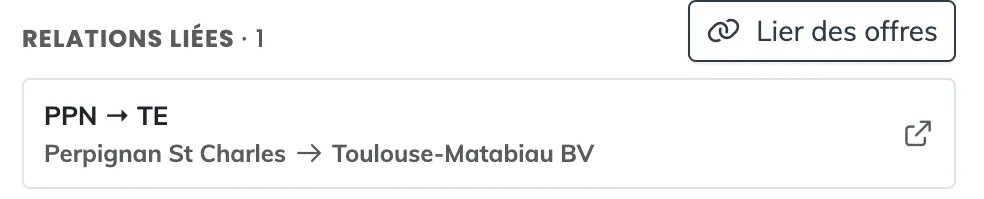
- The used days calendar
The “Used days · X/Y” grid covers the whole period: one column per week, one row per weekday, months as headers. On hover, the cell’s date. X counts the used days, Y the running days (used and unused).
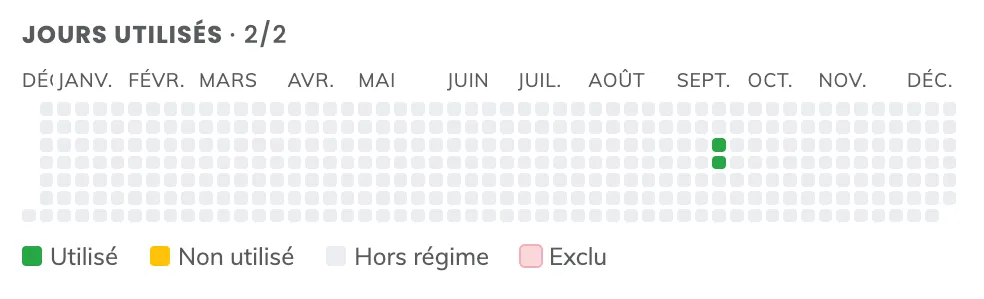
| Colour | What it means |
|---|---|
| Green | Used: the train path runs and a relation uses it that day |
| Orange | Unused: the train path runs and no relation uses it |
| Blue | Duplicate: the train path is used several times that day (only shown if there are any) |
| Grey | Not running: the train path does not run that day |
| Light red | Excluded: the date was removed by hand from the train path’s application |
Creating, editing, duplicating a train path
Required right Edit train paths
The three actions open the same three-step modal, 1 Identification, 2 Constraints, 3 Route, as a clickable stepper. Next stays disabled while the current step is invalid; a step already passed but invalid is flagged in red; Previous goes back; Save, on the last step, becomes active when the whole form is valid.
| Action | Modal title | What happens |
|---|---|---|
| “Create a train path…” | Add a train path | blank form; after creation, the search lands on the number and the new train path is selected |
| A card’s pencil icon | Edit the train path | pre-filled form; the number cannot be changed |
| A card’s menu, “Duplicate train path…” | Add a train path | form pre-filled from the source train path, status reset to Active; saving creates a new train path, hence a new variant, which is then selected |
1 · Identification
- The number and the conflict
The Train path number is required. If other train paths of the period carry the same number and share application days, an orange box lists them: “Train path valid from … to …, N days in common”. The checkbox “Remove these application days from existing train paths on creation” excludes, on saving, those shared days from the existing train paths: the new variant takes over without a duplicate.

- Validity
Valid from and Valid until, required, bounded by the timetable period; the start date precedes or equals the end date. Only the days within the validity can be activated in the application.
- Application
The 7 day buttons set the weekly pattern, Monday to Friday by default. In the monthly calendar, a click on a running day excludes it (RJJ), a click on a non-running day includes it (AJJ); a second click cancels. A country’s public holidays are removed or added in bulk. “Clear added dates” and “Clear removed dates” reset. The legend: running days, included / AJJ, excluded / RJJ, inactive, out of period, out of validity, public holiday. The simplified label (
MO-FR) is computed automatically and stays editable. On saving, included or excluded dates outside the validity are ignored.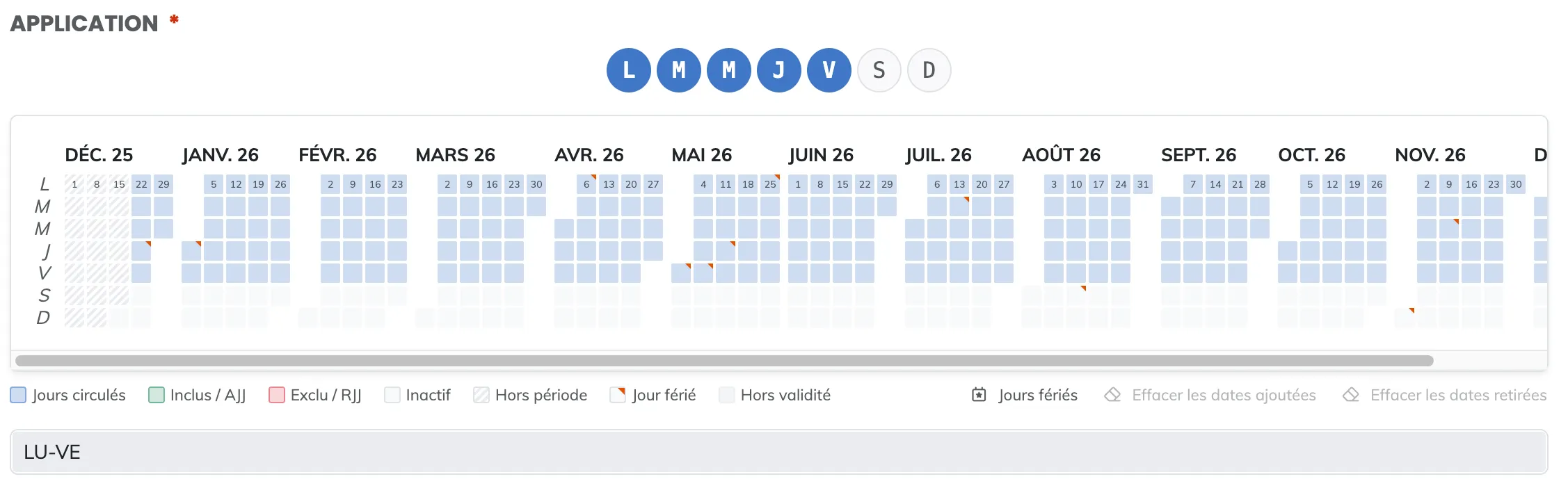
- The comment
Free text. It appears in the detail panel’s header, in the link legs on the transport plan side, and in the week view.
2 · Constraints
The Supplier: the railway undertaking holding the train path, optional. The technical constraints, optional: maximum length (m), maximum weight (t), maximum speed (km/h), loading gauge (a reference list). The week view compares these values with those of the covered offer and flags in red a train path more constrained than the offer.
3 · Route
The route is made of an origin, intermediate points and a destination, each chosen among the infrastructure’s network points.
- The origin
Required: the PR, the departure time, and the Customer HLR and RU HLR lists. Each entry carries a time, a
+Jshift and an optional equipment constraint. - Intermediate points
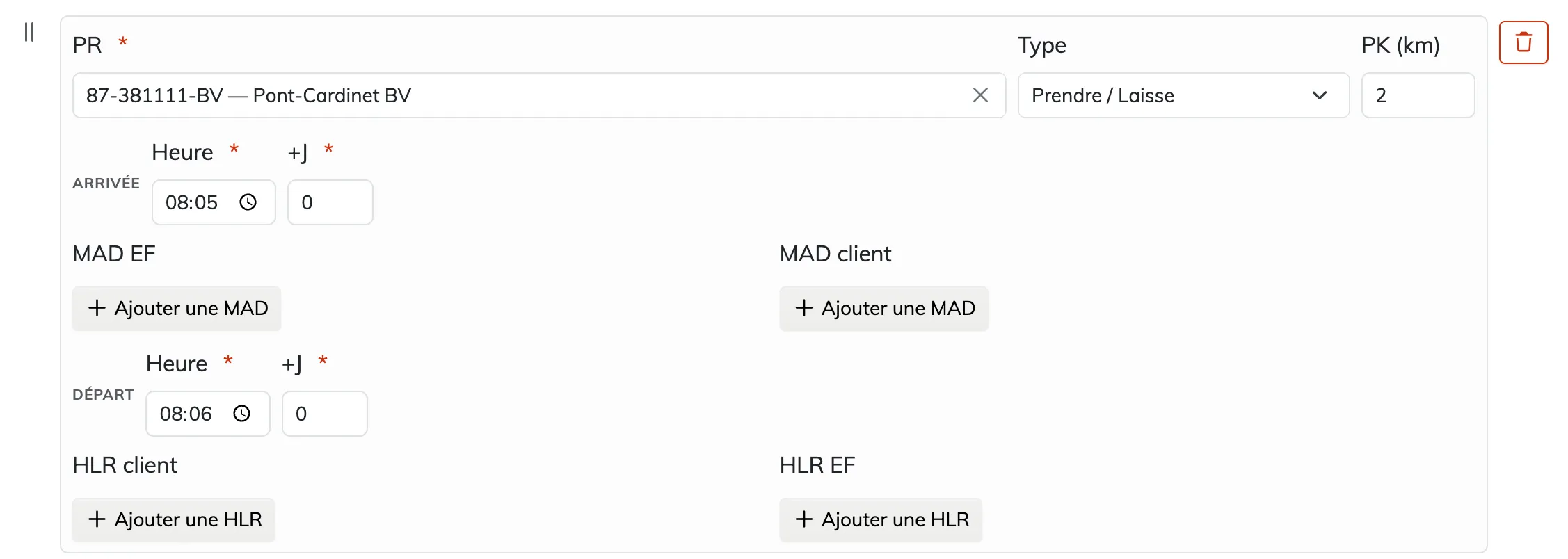
“Add a point” adds one, the bin icon removes it, the handle reorders it by drag and drop. Each point carries its PR, its Type and its PK in kilometres. Five types: Pick up / Drop off, Passing point, Driver change, Reversal, Running. A Passing point only has a passing time (+J); the other types have an arrival and a departure (time and +J); a Pick up / Drop off also carries the RU MAD and Customer MAD lists on arrival, Customer HLR and RU HLR on departure.
- The destination
Required: the PR, the PK, the arrival time (+J), and the RU MAD and Customer MAD lists.
- The tools
Active when the form is valid. Reverse route swaps origin and destination and reverses the order of the intermediate points; the departure time is kept, every time (HLR and MAD included) and the PKs are recalculated in mirror. Shift asks for a new departure time and shifts every time of the route by the same offset: arrivals, departures, passings, HLR, MAD and +J.

Consistency checks appear under the point or under the route: at a given point, the arrival precedes or equals the departure; at the departure, Customer HLR < RU HLR < Departure; at the arrival, Arrival < RU MAD < Customer MAD; along the route, times (+J included) and PKs increase, the origin being 0.
Instantiating a train path
Required right Edit train paths
A card’s menu, “Instantiate train path…”. Instantiating means generating the train path’s dated runs for the chosen dates.
- Choosing the dates
The summary gives the validity, the application label and the available, in progress, instantiated, selected counters. Quick actions add available dates to the selection: 7 days, 30 days, 90 days from today; This month, Next month, Whole validity; Invert and Clear; a From / To range with “Add range”. In the calendar, a click on an available day selects or deselects it; on hover, the date, the status and, for an instantiated date, the run’s identifier.

- Sending
“Instantiate N dates” sends the request; message “N dates sent for instantiation”. Processing is asynchronous: dates first become in progress, then instantiated.
| Legend | What it means |
|---|---|
| Available | the train path runs that day and the date is not yet instantiated |
| Selected | the date is kept |
| Being instantiated | the request is sent, being processed |
| Already instantiated | a dated run exists |
| Not in application | the train path does not run that day |
| Out of validity | outside the train path’s validity |
Link offers
Required right Read train paths
Usage tab of the panel, “Link offers” button. It is the train path side of the link created from a relation: here you start from a train path and give it, in one go, every relation it can serve.
- Reading the compatible relations
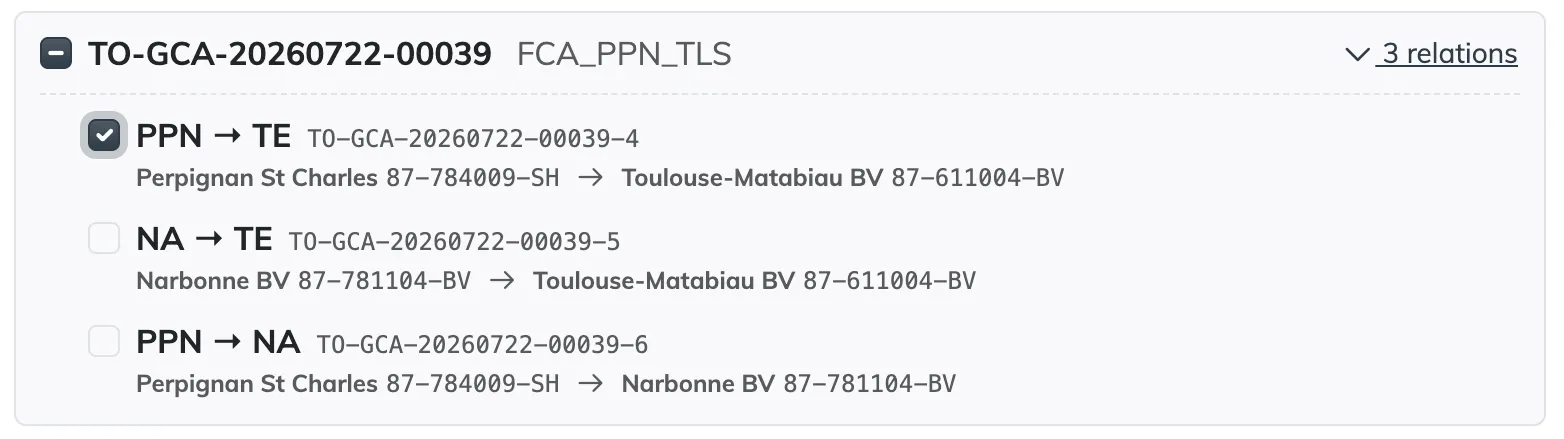
The modal searches for compatible relations on its own (“Loading compatible offers…”, or “No offer compatible with this train path.”). They are grouped by offer (number and name), each group expandable with a “select all” checkbox, in partial state if only some relations are checked. For each relation: the name, the number, and the departure point → arrival point with their code.
- Linking
“Link N relations” creates one link per checked relation. A message gives the number of links created, and a warning flags those that could not be. The list and the panel are updated.
A relation is compatible when its offer belongs to the same timetable period as the train path, and its departure point and arrival point both appear in the train path’s route as Pick up / Drop off points, in that order. The train path must therefore have at least two Pick up / Drop off points.
Create an offer from this train path
Required right Edit train pathsEdit transport plans
A card’s menu, “Create an offer from this train path…”. The reference transport plan creation modal opens pre-filled with the period, the application, the supplier, the Active status, the origin and destination with their times, HLR and MAD, the technical constraints, and the intermediate points of Pick up / Drop off type only: the other types are not carried over. Message: “The offer was created from the train path.” The offer then exists, with its main relation; it remains to link it to the train path.
Deleting a train path
Required right Edit train pathsDelete train paths
A card’s menu, “Delete train path…”, in red. A confirmation names the train path: “Are you sure you want to delete train path N vX?”, with Delete in red and Cancel. The list is refreshed and the panel closes if that train path was selected. The links that used the train path disappear: the relations it covered get their gaps back.
Summary of actions
| Action | Where | Required right |
|---|---|---|
| Change period | period selector | read |
| Select a train path | click on a card | read |
| Create a train path | “Create a train path…” button | edit train paths |
| Edit | a card’s pencil icon | edit train paths |
| Duplicate | a card’s menu | edit train paths |
| Instantiate | a card’s menu | edit train paths |
| Create an offer from this train path | a card’s menu | edit transport plans |
| Delete | a card’s menu | delete train paths |
| Link offers | Usage tab of the panel | read |
| Open a linked relation | click on a relation, Usage tab | read |
Behaviours
- A spinner on first load, an overlay while saving, “No result” if the list is empty, a notification on server error.
- Cards appear progressively as you scroll, with a grey skeleton in the meantime.
- After each creation, edit, deletion, instantiation or linking, the list and the panel are reloaded.
- Usage is recalculated by the server; until the calculation is done, the card shows “Computing…”.
- The other screens open this one with the search pre-filled, the train path selected and the period.